Enterprise sales is a team sport. Account Executives, Solutions Engineers, Sales Managers, and Deal Desk need to collaborate seamlessly across deal diagnoses, Mutual Action Plans, and pipeline reviews.
Dealwize provides centralized team management (app.dealwize.co/team) allowing administrators to invite colleagues, manage license seats, control permissions, and designate task owners across opportunities.
1. Workspace Roles & Permissions#
Internal users in your Dealwize workspace belong to one of two primary roles:
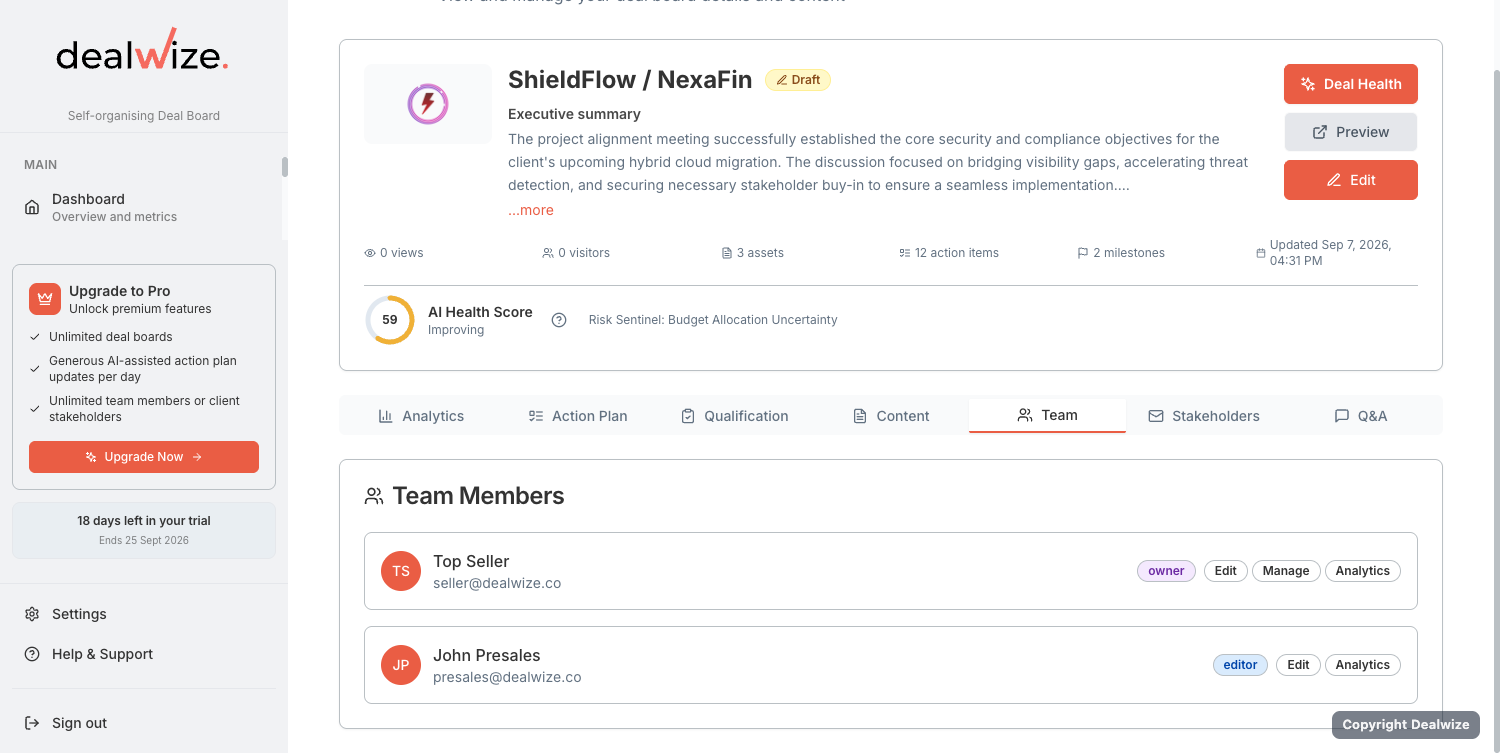
| Role | Primary Responsibilities | Administrative Capabilities |
|---|---|---|
| Admin (Org Owner) | Sales Leadership, Revenue Operations, Founders | Full administrative control over organization settings, custom branding, and billing seats. Can invite, edit, and offboard users. Access to all team dealboards and pipeline diagnoses. |
| Member | Account Executives, Solutions Engineers, Deal Desk | Can create, analyze, and edit assigned dealboards. Can assign teammates to MAP action items, log call transcripts, and run deal reviews. |
Granular Permission Checks#
Under the hood, Dealwize enforces permission checks (usePermissionCheck.ts) across key actions:
canInviteUser: Authority to send invitations to new colleagues within available seat licenses.canManageUser: Authority to edit team roles or offboard departing members.canReadUser: Visibility into the organization roster and team seat capacity.
2. Inviting Colleagues to Your Workspace#
To add team members to your organization:
- Log in to app.dealwize.co and select Team from the main navigation.
- In the top banner, review your Seat Usage (licensed seats, active members, and pending invitations).
- Click Invite Member.
- Enter your colleague's corporate email address and select their assigned role (Admin or Member).
- Click Send Invitation.
Corporate Domain Auto-Routing#
If your organization has corporate domain matching enabled (e.g. @acme.com), new team members who sign in with their corporate Google SSO or work email are automatically routed into your shared workspace—bypassing manual invite acceptance.
3. Assigning Team Members to Action Items#
In complex evaluations, different internal team members own different sales deliverables. Dealwize allows reps to assign internal colleagues directly to Mutual Action Plan line items:
  Action Item: "Configure Tailored Enterprise Sandbox"
  Assigned To: Alex Rivera (Solutions Engineer)  [Internal Team Member]
  Deadline:    14-Sep-2026
  Status:      In Progress
Internal vs. External Assignee Typing#
Dealwize cleanly distinguishes between internal colleagues and external prospect stakeholders:
- Internal Assignees (
user:id): Drawn from your workspace team roster. Assignees receive task notifications and can log updates directly from their Dealwize dashboard. - External Assignees (
stakeholder:id): Drawn from buying committee contacts. Displayed on the public Deal Board with their customer organization tag.
4. Seat Licensing & Capacity Management#
Dealwize manages workspace licenses through automated Stripe subscription integration:
- Billable Seats (
max_billable_seats): The total number of active member licenses allocated to your plan. - Seat Capacity Alert: When all licensed seats are filled (active members + pending invitations), the system automatically prevents unauthorized invitations and prompts administrators to add seats under Settings > Billing.
- Inactive & Suspended Users: Administrators can toggle view filters to inspect active versus inactive users, ensuring licenses are only allocated to active team members.
5. Offboarding & Deal Re-assignment#
When an Account Executive transitions accounts or leaves the company, pipeline momentum must not be disrupted:
- Open Team Management (
/team) and locate the user row. - Click the action menu and select Offboard User.
- In the offboarding modal, select the designated replacement team member.
- Dealwize automatically reassigns:
- All active Deal Boards and deal health records.
- All open Mutual Action Plan action items where the departing rep was listed as the owner.
- Internal deal coaching notes and historical transcript associations.
This ensures that incoming reps can step into existing enterprise evaluations with zero lost context.