Spreadsheets titled Mutual_Plan_v3_REAL_FINAL.xlsx get buried in email threads, go stale within days, and place 100% of the administrative burden on the sales rep.
Dealwize replaces static file attachments with living, bi-directional collaboration dealboards. In Dealwize, a Mutual Action Plan operates across two distinct aspects:
- The Deal Board MAP (Internal Management View): Where sellers configure, edit, and orchestrate milestones, link collateral, and monitor execution alongside deal health diagnostics.
- The Stakeholder View (Client-Facing Shared Dealboard & "Preview"): The clean, branded portal shown when clicking Preview or when buyers open their shared link—enabling prospects to complete tasks, view linked assets, and track progress toward their target go-live date.
1. The Two Aspects of Dealwize MAPs#
To protect sensitive deal strategy while giving buyers total transparency into project delivery, Dealwize cleanly separates the seller workspace from the client workspace:
                                  ┌─────────────────────────────────────────┐
                                  │      Dealwize MAP Architecture          │
                                  └────────────────────┬────────────────────┘
                                                       │
                 ┌─────────────────────────────────────┴─────────────────────────────────────┐
                 ▼                                                                           ▼
   ┌───────────────────────────────────────────┐               ┌───────────────────────────────────────────┐
   │ 1. The Deal Board MAP (Internal View)     │               │ 2. The Stakeholder View ("Preview")       │
   │ /deal-boards/:id & /deal-health/:org/:slug│               │ /:orgSlug/:dealboardSlug (or Preview)     │
   ├───────────────────────────────────────────┤               ├───────────────────────────────────────────┤
   │ • Plan editing, phase management & tasks  │               │ • Branded client portal (Classic/Gallery) │
   │ • AE win forecast & internal quota targets│               │ • Dedicated "Action Plan" & "Content" tabs│
   │ • Internal Deal Health & Risk Matrix link │               │ • Direct asset previews & deliverable DLs │
   │ • Assign internal reps & client contacts  │               │ • Interactive task & checklist check-offs │
   │ • AI delta analysis from call transcripts │               │ • Sanitized: NO health scores or risks    │
   │ [Requires Authenticated Team Login]       │               │ [Zero-Friction Link: No Password Needed]  │
   └───────────────────────────────────────────┘               └───────────────────────────────────────────┘
2. Aspect 1: The Deal Board MAP (Internal Management)#
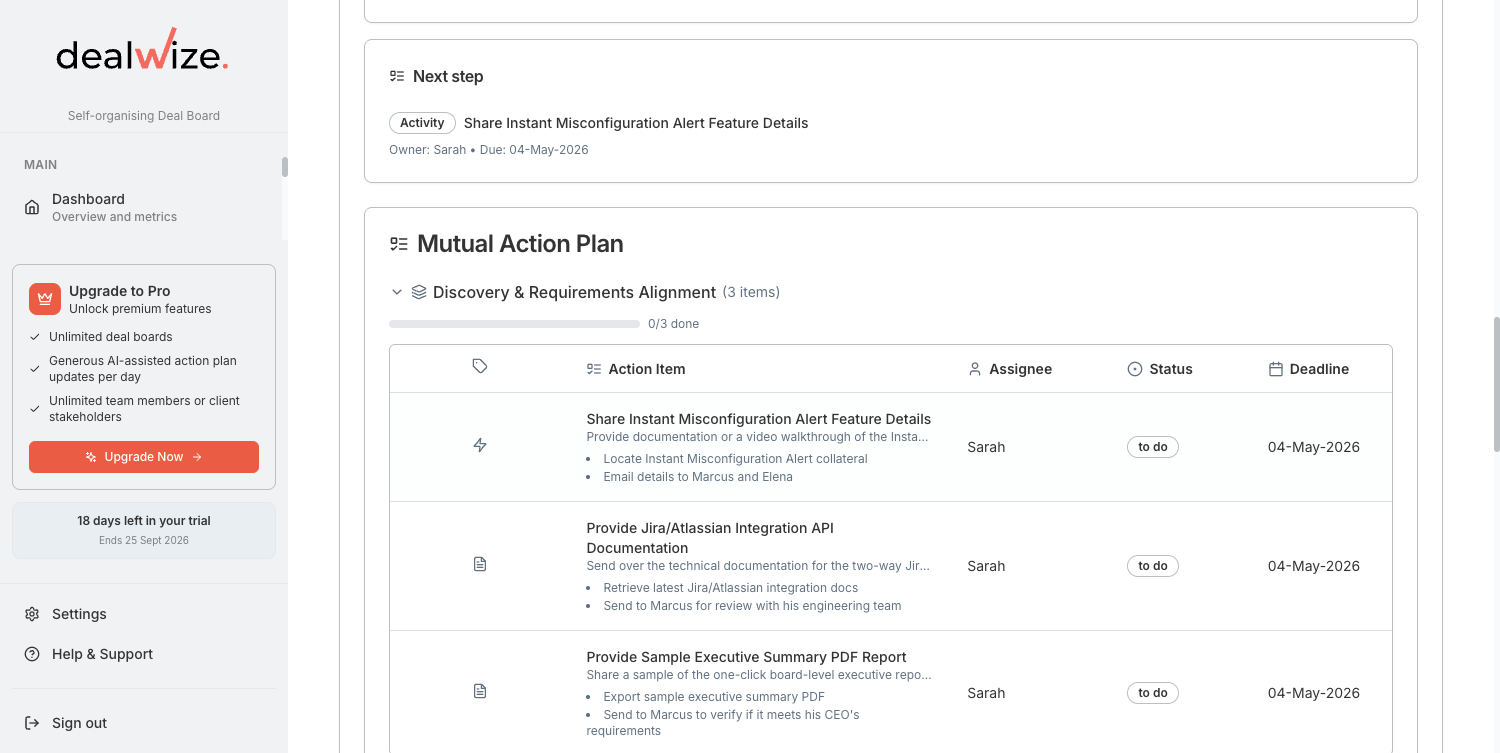
The Deal Board view (/deal-boards/[id] and the Deal Reality One-Pager /deal-health/[orgSlug]/[boardSlug]) is your internal command center for the opportunity.
Automated Extraction via Milestone Miner#
Manual plan creation is time-consuming. Dealwize automates roadmap generation using the Milestone Miner agent—a core node in our LangGraph multi-agent pipeline.
When call transcripts, emails, or discovery notes are ingested, Milestone Miner categorizes commitments into four operational item types:
task: Internal work items, preparation to-dos, and administrative follow-ups (e.g., Configure tailored sandbox environment or Retrieve Jira/Atlassian integration docs).action: Concrete execution steps and activities between teams (e.g., Share instant misconfiguration alert feature details or Submit vendor security questionnaire).meeting: Scheduled calendar events, alignment calls, and stakeholder workshops (e.g., Technical architecture deep dive with Lead Architect).asset_required: Tangible deliverables that gate evaluation progress (e.g., SOC 2 Type II audit report, Customized ROI model, or Sample executive summary PDF).
Continuous Delta Analysis#
As deals evolve over weeks or months, reps ingest subsequent call recordings or notes. Milestone Miner performs delta analysis—identifying completed commitments, updating deadlines, and inserting newly negotiated requirements without wiping manual edits or completed tasks.
Live Momentum Counters#
On the Deal Reality dashboard, reps get an immediate pulse check through live status counters:
- Actions Complete: Displays completed items versus total items (e.g.,
0/12 actions complete). - In Progress: Highlights active items currently being worked on.
- Critical: Flags urgent items with imminent or overdue target dates.
- Phases: Number of structured chronological stages in the evaluation.
- Target Completion Anchor: Prominently displays the buyer's go-live milestone (e.g.,
Target: Go live before 15-Oct-2026).
3. Aspect 2: The Stakeholder View ("Preview" & Shared Dealboard)#
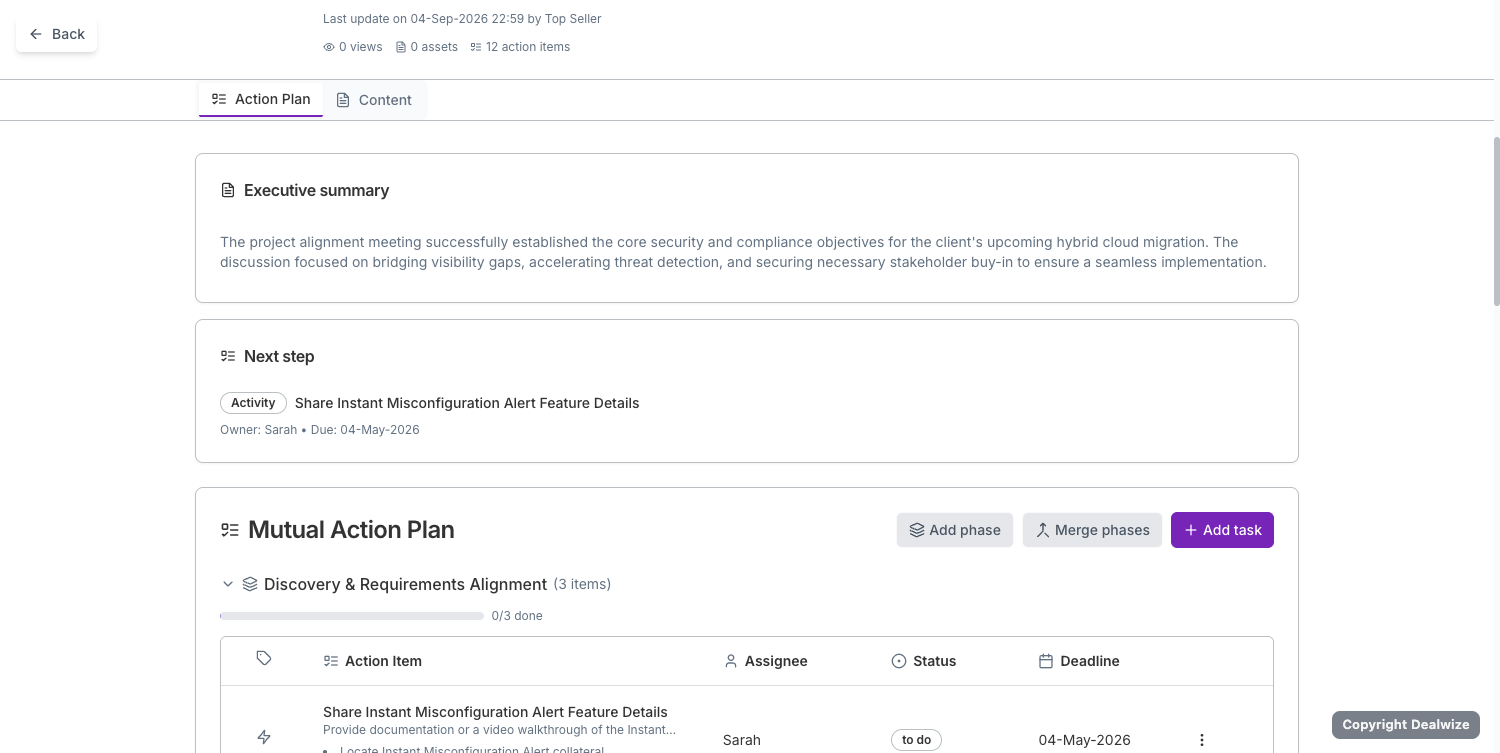
Clicking the "Preview" button from your Deal Board management page opens the Stakeholder View (app.dealwize.co/<org-slug>/<dealboard-slug> or /deal-boards/[id]/preview).
This is the exact interactive experience your buyer sees when you share the link.
What the Stakeholder View Includes:#
-
Header Metadata & Telemetry Strip:
- Displays the last update timestamp and author (e.g. Last update on 04-Sep-2026 by Top Seller).
- Live engagement counters: total view count (
0 views), attached content assets (0 assets), and total action plan items (12 action items).
-
Dual-Tab Interface:
- Action Plan Tab: The running operational agenda showing customer executive summaries, immediate next steps, and phased milestone backlogs.
- Content Tab: Centralized digital collateral room where proposals, security whitepapers, architecture diagrams, and pricing sheets are shared.
-
Customer-Facing Executive Summary Card:
- Synthesizes the core business, security, and technical objectives agreed during discovery (e.g., bridging visibility gaps, accelerating threat detection, and securing hybrid cloud migration).
-
Next Step Highlight:
- Eliminates the "what happens next?" friction by pinning the immediate priority action item (e.g., Share Instant Misconfiguration Alert Feature Details), with designated owner and due date.
-
Interactive Mutual Action Plan Table & Controls:
- Chronological evaluation phases with visual progress indicators (e.g.,
Discovery & Requirements Alignment,0/3 done). - Action items featuring granular execution subtasks, assigned owners (
Sarah), status tracking (to do,in progress,complete), and firm target deadlines. - Plan controls for sales engineers and champions (
Add phase,Merge phases,+ Add task).
- Chronological evaluation phases with visual progress indicators (e.g.,
-
Interactive Checklists & Direct Asset Access:
- Action items can include embedded micro-checklists (
checklist) allowing stakeholders to tick off steps (e.g., Review REST APIs, Confirm webhook endpoints). - Items with deliverables (e.g., Review SOC 2 Type II Report) link directly to the asset preview dialog (
onOpenAssetPreview), letting evaluators inspect compliance collateral in-browser without downloading attachments.
- Action items can include embedded micro-checklists (
-
Two-Way Collaboration (
canContribute):- When granted collaboration access, client champions and technical evaluators can mark their own tasks as done, update checklist items, and log comments directly on the board.
-
Strict Security & Privacy Isolation:
The Stakeholder View automatically sanitizes internal deal intelligence:- Hidden: Deal Health score (0–100), The Brutal Truth analysis, internal risk matrix, AE forecast percentages, and internal sales rep coaching notes are strictly suppressed (
hideNorthStarAndRisks = true). - Visible: Only mutual objectives, customer executive summaries (
client_executive_summary), shared milestones, and agreed collateral are rendered.
- Hidden: Deal Health score (0–100), The Brutal Truth analysis, internal risk matrix, AE forecast percentages, and internal sales rep coaching notes are strictly suppressed (
-
Zero-Friction Buyer Access:
- Buyers do not need to register, remember a password, or download software. They access the shared dealboard via a secure, tokenized URL.
4. Tracking Buyer Reciprocity & Engagement Telemetry#
A Mutual Action Plan is only effective if the buyer is actively participating. In Dealwize, every interaction in the Stakeholder View feeds directly into deal intelligence telemetry:
- Board Visits & Tab Switches: Detects when stakeholders open the dealboard and switch between the Content and Action Plan tabs (
preview_tab: 'action-plan'). - Asset Telemetry: Tracks when security whitepapers, contracts, or technical specs are viewed or downloaded.
- Milestone Execution: Monitors whether buyer assignees are checking off assigned items or missing agreed deadlines.
If an AE has completed multiple seller tasks while the buyer has not completed their tasks or visited the shared dealboard in 10 days, the Risk Sentinel automatically flags a lack of buyer reciprocity—alerting the rep and manager to deal stalling before the quarter ends.
5. End-to-End Workflow for Sales Reps#
Step 1: Ingest Call Transcripts to Generate the Plan#
Upload discovery notes or call transcripts into Dealwize (via /analyze or your CRM integration). The Milestone Miner drafts the initial phased roadmap.
Step 2: Configure & Refine in the Deal Board#
Open the deal in your Deal Board. Verify that the anchor milestone reflects the buyer's compelling event (e.g., Go-live before Q4 peak season). Assign specific owners across both teams formatted as Name (Organization).
Step 3: Click "Preview" to Inspect the Stakeholder Experience#
Before sharing with your prospect, click the Preview button in the top navigation. Verify that:
- The client executive summary is crisp and customer-centric.
- All required collateral (whitepapers, SOC 2 reports) are attached to relevant action items.
- Internal notes and risk scores are sanitized.
Step 4: Share the Live Link#
Open the Share dialog, copy the buyer-facing dealboard link (app.dealwize.co/<org-slug>/<dealboard-slug>), and send it to your champion in your follow-up email.
Step 5: Run Evaluation Calls from the Living MAP#
Rather than sending generic "just checking in" emails, use the shared Stakeholder View as the living agenda for every scheduled sync call.
Related Guides & Deep Dives#
- Configure buyer permissions: External Stakeholder Access & Permissions
- Track buyer engagement: Buyer Engagement Telemetry & Behavioral Analytics
- Understand risk detection: Risk Detection & The Blocker Matrix
- Diagnose deal vitality: Understanding Deal Health & Scoring Mechanics